
How to Set Up Claude Desktop: A Complete Installation Guide
How to Set Up Claude Desktop: Prerequisites, Install Steps, and Plans Explained
Getting Claude Desktop running on your machine takes a few minutes, but a couple of details — your OS version, free disk space, and which plan you’re on — decide whether you get just Chat, or the full Chat, Code, and Cowork experience. This guide walks through what to check before you download, the install steps for macOS, Windows, and Linux, and which plan unlocks what.
Watch the full setup walkthrough on YouTube
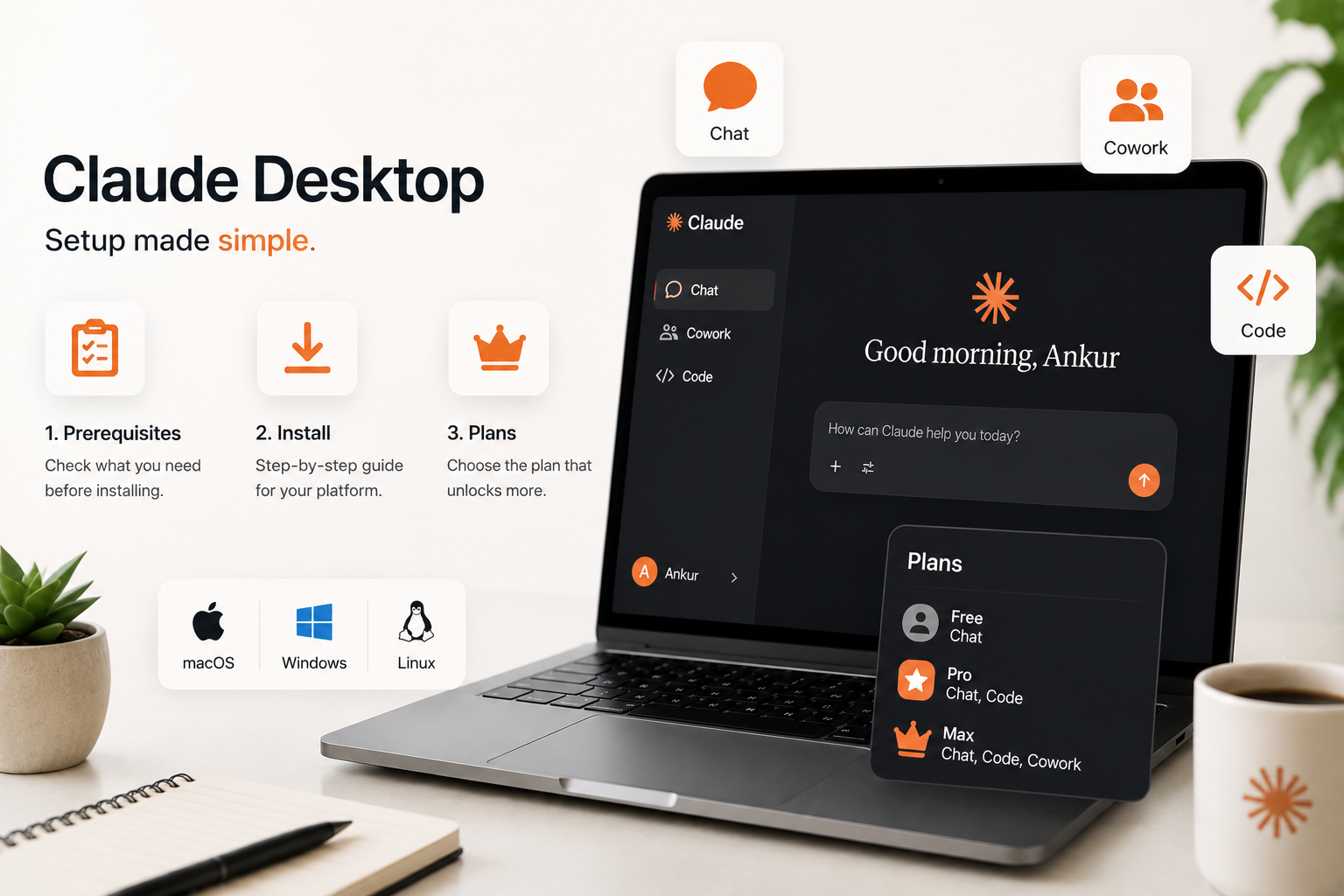
Before You Install: Prerequisites
Have these ready before you download anything:
- An Anthropic account — Free, Pro, Max, Team, or Enterprise all work; sign in with the same login you use on claude.ai.
- Free disk space — 10GB or more in general. If you plan to use Cowork, its local workspace image needs about 25GB.
- 8GB+ RAM — the minimum to run Cowork’s isolated virtual machine smoothly.
- Admin rights on Windows — required for a full install, including Cowork support.
- A supported OS version — checked in the next section; older builds can block installation.
- A paid plan for Code and Cowork — Chat is free on every plan; Claude Code and Cowork require Pro or above.
Supported Operating Systems
| OS | Minimum version | Notes |
|---|---|---|
| macOS | macOS 11 (Big Sur) or higher | Full support, including Cowork and Code |
| Windows | Windows 10 or higher | Admin rights needed for Cowork |
| Linux (beta) | Ubuntu 22.04 LTS+ or Debian 12 (bookworm)+, x64 or arm64 | Some features limited |
Linux beta currently has a few limitations worth knowing up front: computer use isn’t available, dictation isn’t available, and the Quick Entry hotkey needs either X11 or a Wayland GlobalShortcuts portal.
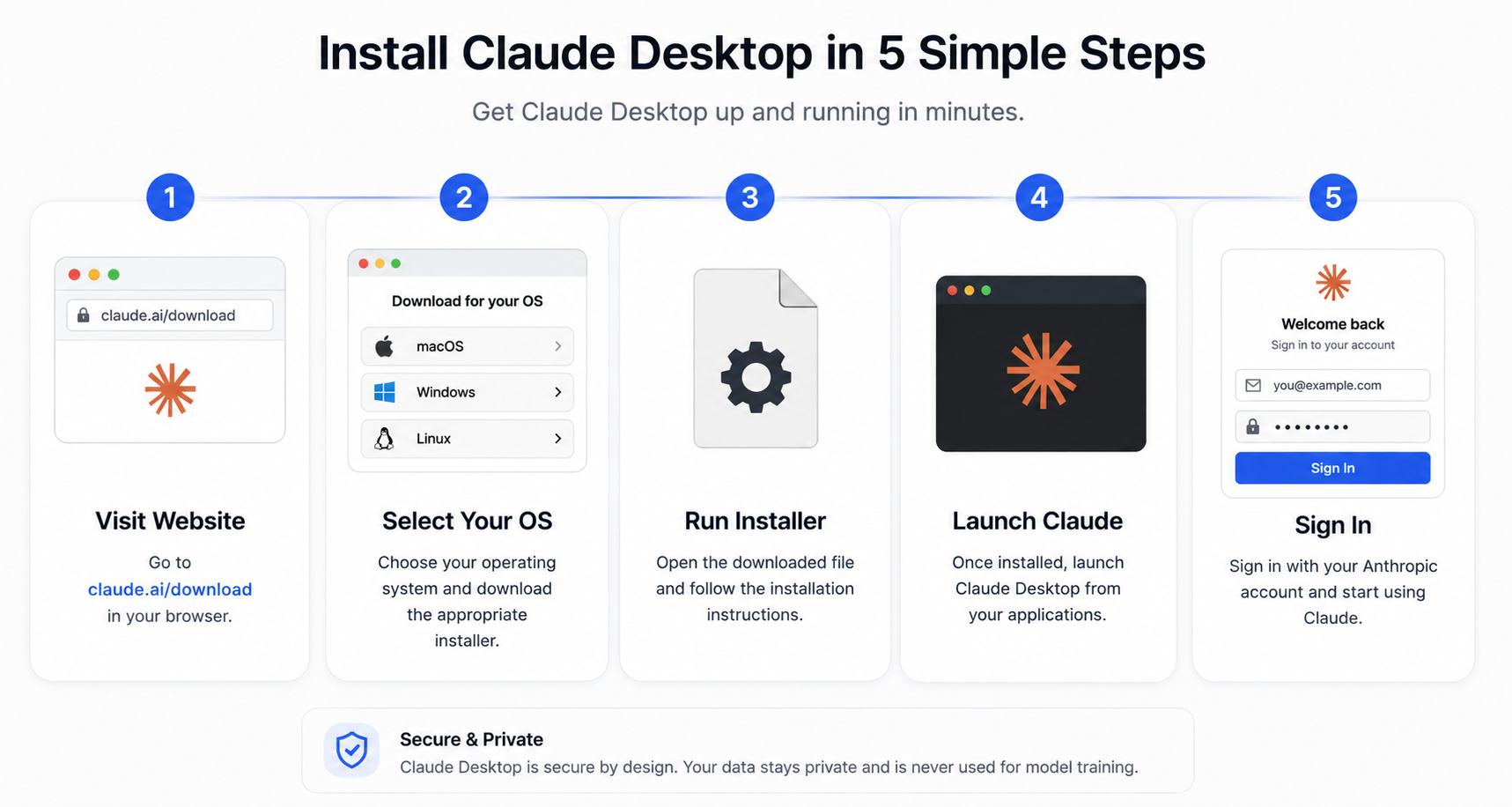
Install Workflow — macOS and Windows
- Visit claude.ai/download
- Select macOS or Windows and click Download
- Open the downloaded file to run the installer
- Launch Claude from Applications (Mac) or the Start menu (Windows)
- Sign in with your Anthropic account
On Windows, Cowork requires admin privileges during install skip that step and Cowork won’t be available afterward.
Install Workflow — Linux (Beta)
The recommended path is the apt repository, since updates then come through your normal system updates:
sudo curl -fsSLo /usr/share/keyrings/claude-desktop-archive-keyring.asc \
https://downloads.claude.ai/claude-desktop/key.asc
echo "deb [signed-by=/usr/share/keyrings/claude-desktop-archive-keyring.asc] https://downloads.claude.ai/claude-desktop/apt/stable stable main" | sudo tee /etc/apt/sources.list.d/claude-desktop.listsudo apt update && sudo apt install claude-desktopThen launch Claude from your applications menu (or run claude-desktop) and sign in.
Prefer a manual .deb? Download it from the Claude downloads page and run: sudo apt install ~/Downloads/claude-desktop_amd64.deb — note this skips automatic updates.
Extra Setup: Cowork on Linux
Cowork runs each task inside an isolated local virtual machine, so Linux needs a few things enabled first:
- Hardware virtualization (KVM) — usually on by default; if disabled, enable it in BIOS/UEFI and restart.
- Permission to use virtualization — run
sudo usermod -aG kvm $USER, then log out and back in. - QEMU and supporting packages — installed automatically via apt; manual
.debusers should runsudo apt install qemu-system-x86 ovmf virtiofsd(or the arm64 equivalents). - Disk and memory — about 25GB free disk space for the workspace image, and at least 8GB RAM (the workspace itself uses roughly 4GB while running).
Which Plan Unlocks What
Chat is free everywhere. Claude Code and Cowork need a paid plan.
| Feature | Free | Pro | Max | Team | Enterprise |
|---|---|---|---|---|---|
| Chat | Yes | Yes | Yes | Yes | Yes |
| Claude Code | — | Yes | Yes | Yes | Yes |
| Claude Cowork | — | Yes | Yes | Yes | Yes |
Both Code and Cowork run on the same underlying agent — Cowork is simply the visual, no-terminal way to hand off the same kind of multi-step work.
The Complete Workflow, Start to Finish
- Check that your OS meets the minimum version
- Download Claude Desktop for your OS
- Install and sign in with your Anthropic account
- On a paid plan? Open the Code tab or start a Cowork task
- Linux only: enable KVM and install QEMU before your first Cowork task
claude.ai/download → sign in → Chat, Code, or Cowork, all in one app.
Final Thoughts
Most of the setup friction comes down to three checks: your OS version, your available disk space and RAM, and your plan. Get those right before you download, and the install itself only takes a few clicks.
Watch the full setup walkthrough on YouTube
Drop a comment if you run into anything along the way.