
Implementing In-app navigation Oracle Visual Builder using Oracle Redwood
In this article, we will demonstrate how to implement in-app navigation using Oracle Redwood in Oracle Visual Builder Cloud Service (VBCS).
Below are the steps to implement the use case:
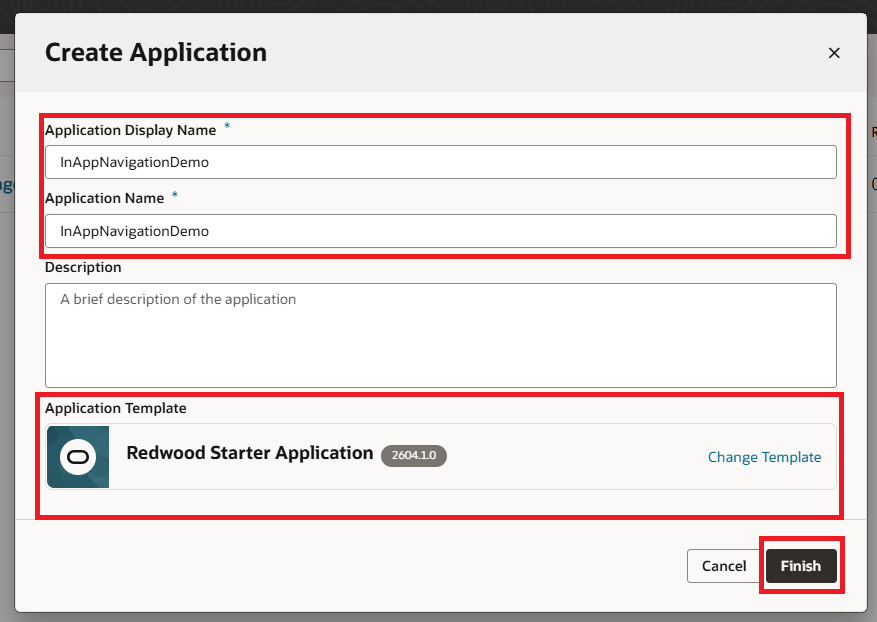
1. Develop a VB Application by entering the application name and choosing the Redwood Starter Template from the available options, as shown in the following screenshot:
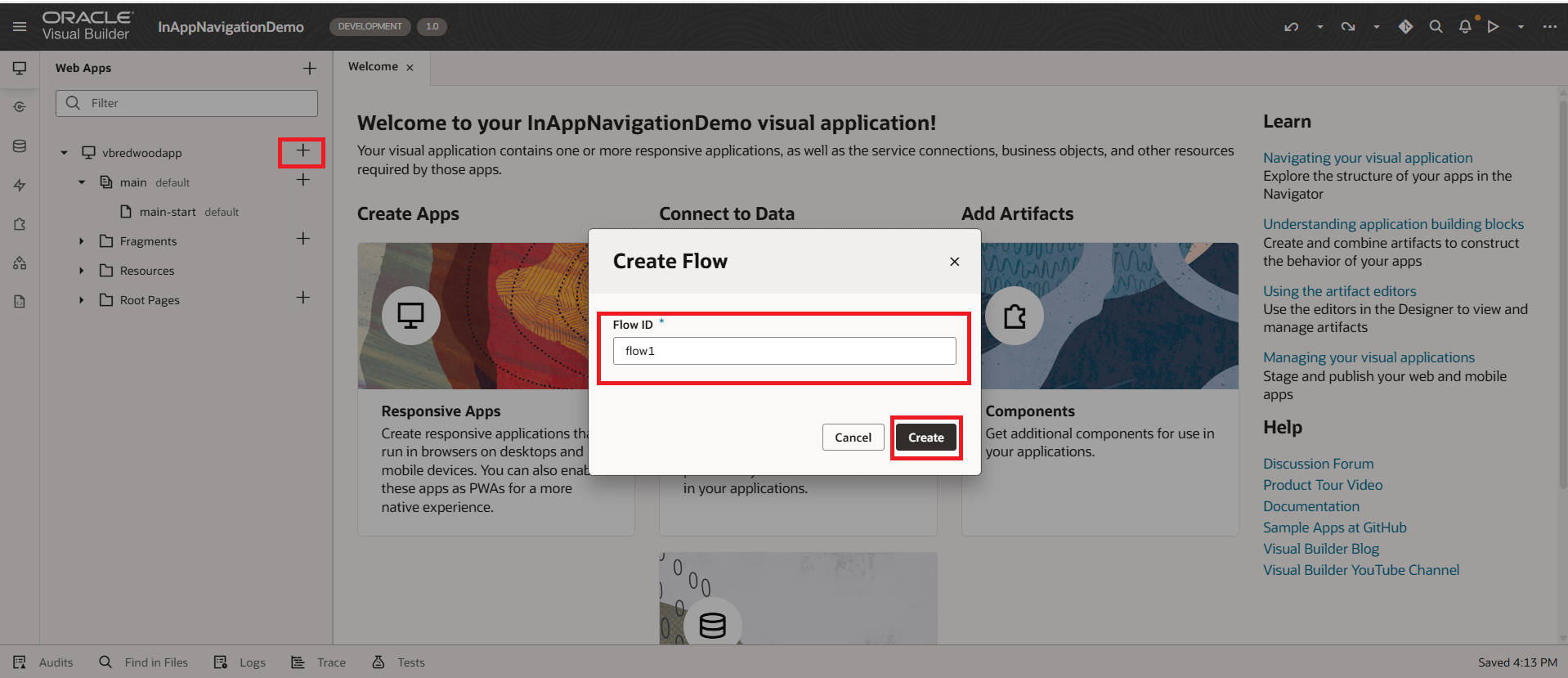
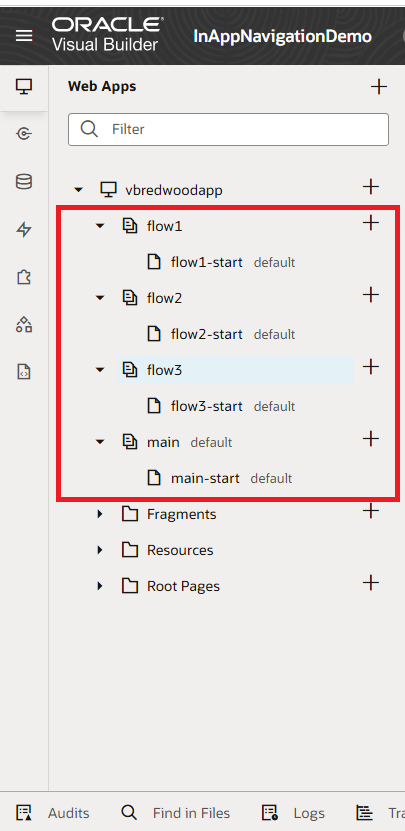
2. By default, we have a main flow and main-start page in it. Let’s click on + at the application level, give the Flow IDs to add multiple flows, and click on the Create button, as shown in the following screenshot:
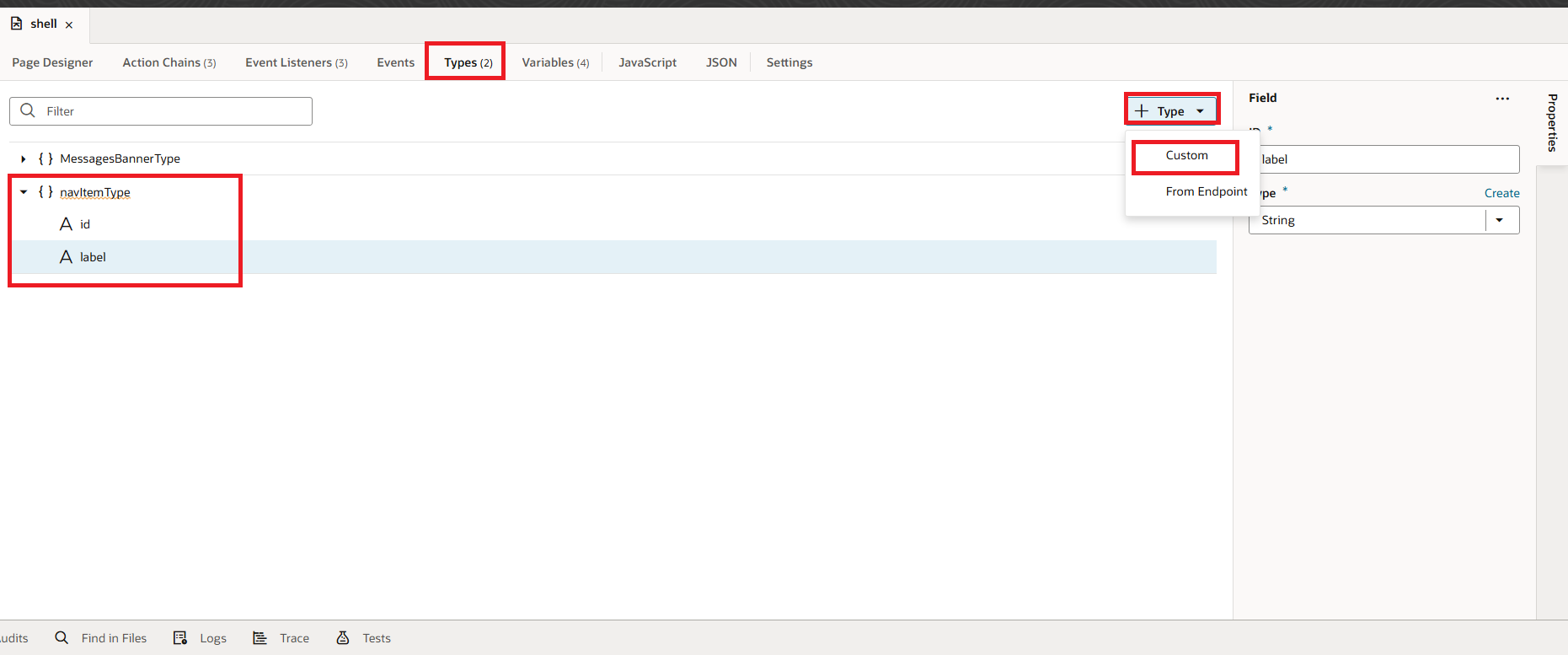
 3. Go to Type, click on the +Type button, select custom, and add navItemType with id and label in the object as shown in the following screenshot:
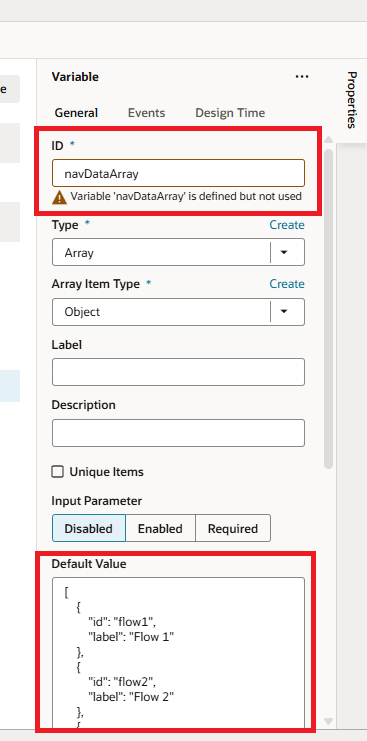
 4. Go to the shell page, switch to Variables, click on +Variable, add the below variables with type as specified below:
- navDataArray – > Array
Default Value: [{“id”:”flow1″,”label”:”Flow 1″},{“id”:”flow2″,”label”:”Flow 2″},{“id”:”flow3″,”label”:”Flow 3″},{“id”:”flow4″,”label”:”Flow 4″},{“id”:”main”,”label”:”Main”}]
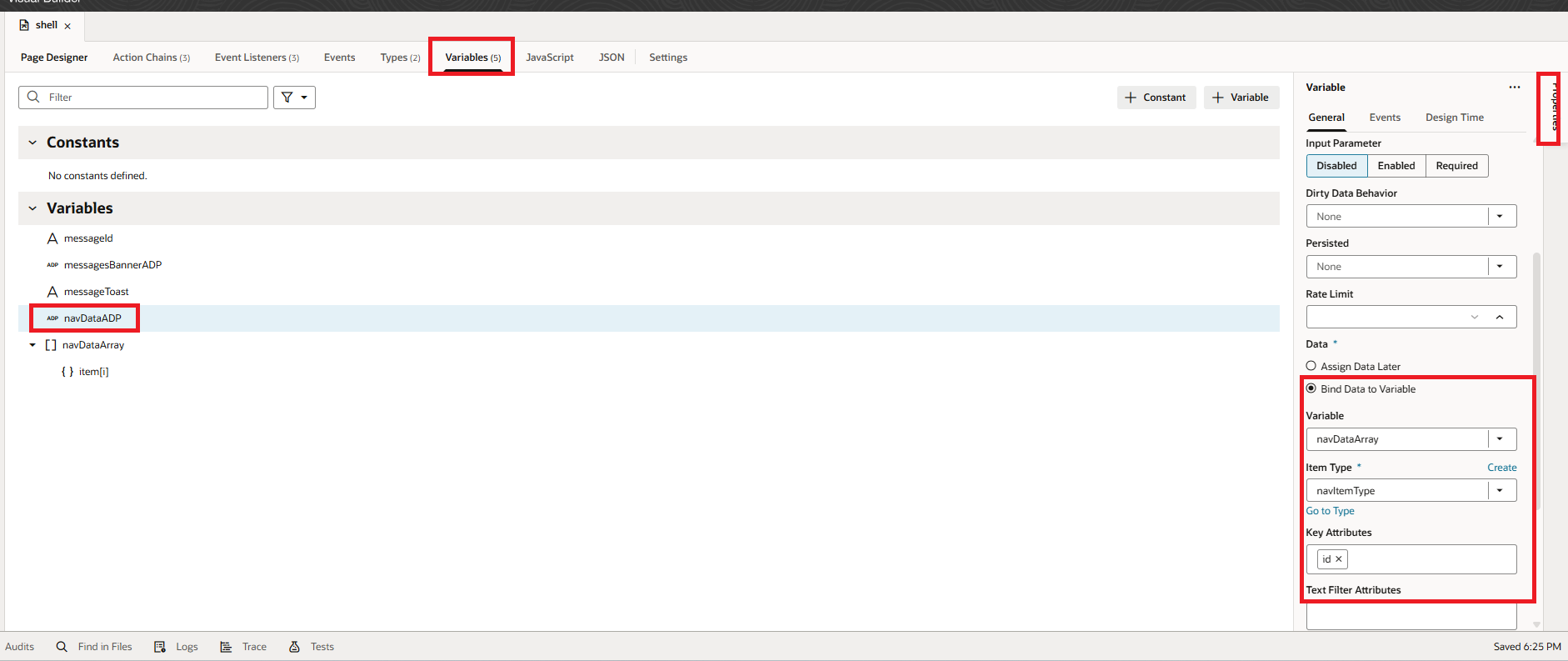
- navDataADP — > Array Data Provider with the above arrayVariable with default value bound to it with id as Key Attribute.
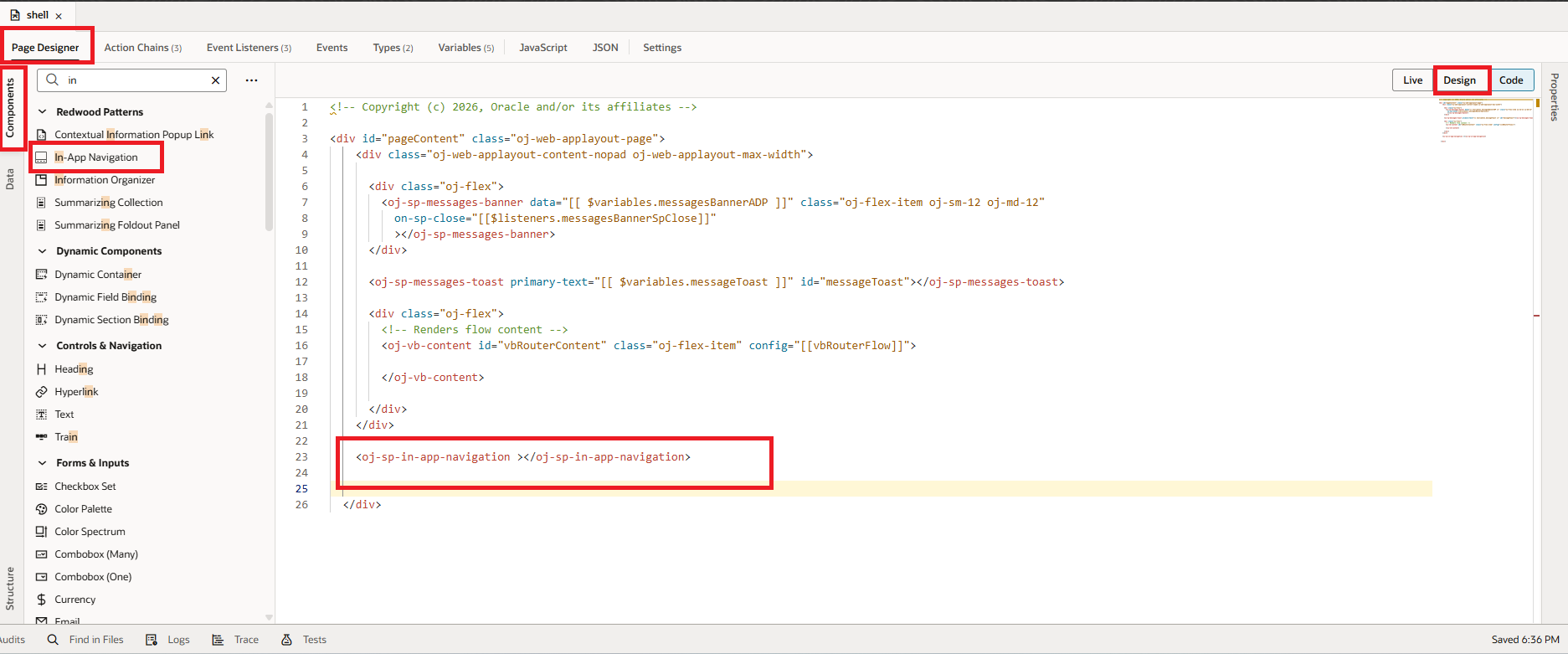
5. Now go to Page Designer, drag and drop the In-App Navigation component from the component palette to Design area as shown in the following screenshot:
 6. Click on the In-App Navigation component, switch to the Data tab in Properties, and bind the ADP variable created as shown in the screenshot below: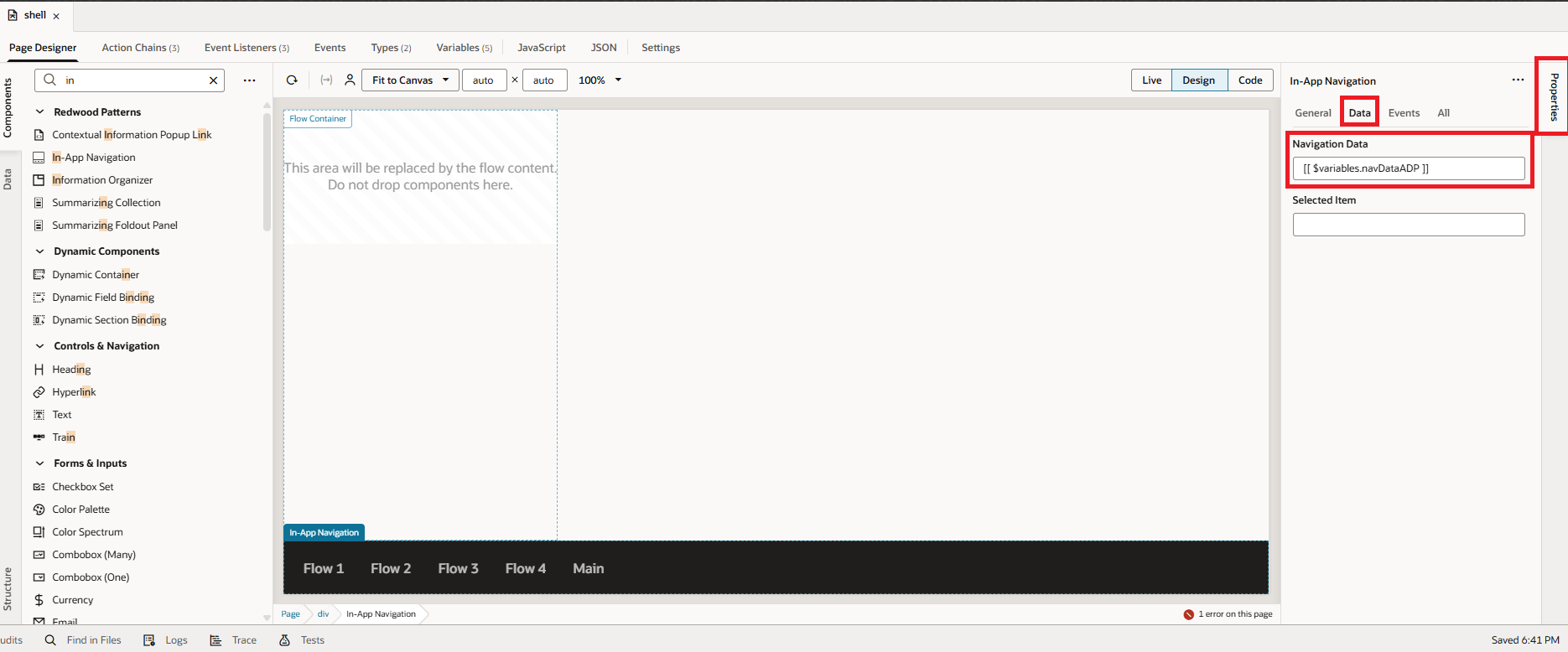
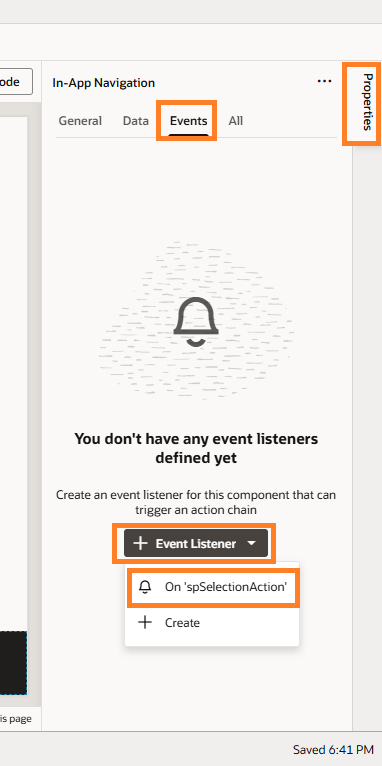
7. Now switch to the Events tab, click on +Event Listener, and select on-spSelectionAction as shown in the following screenshot:
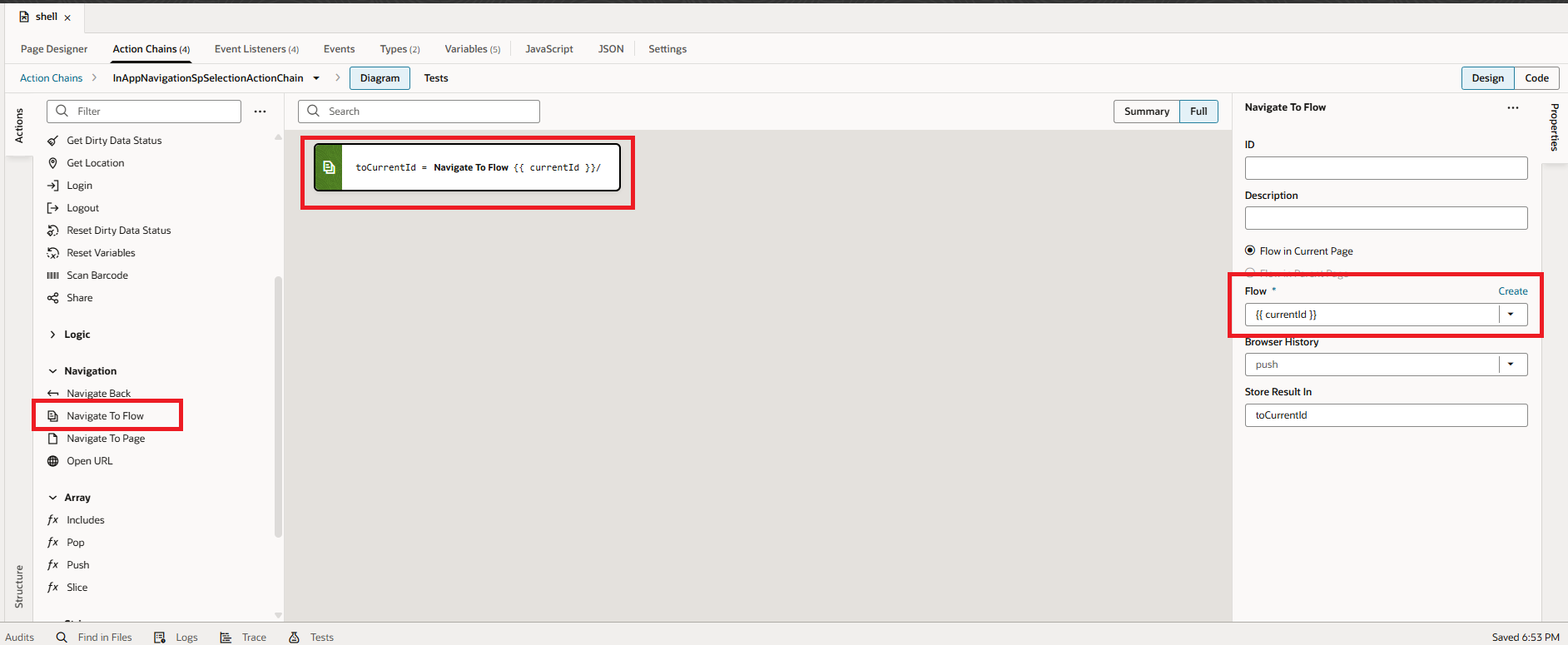
 8. Drag and drop Navigate to Flow, map CurrentId to the flow as shown in the following screenshot:
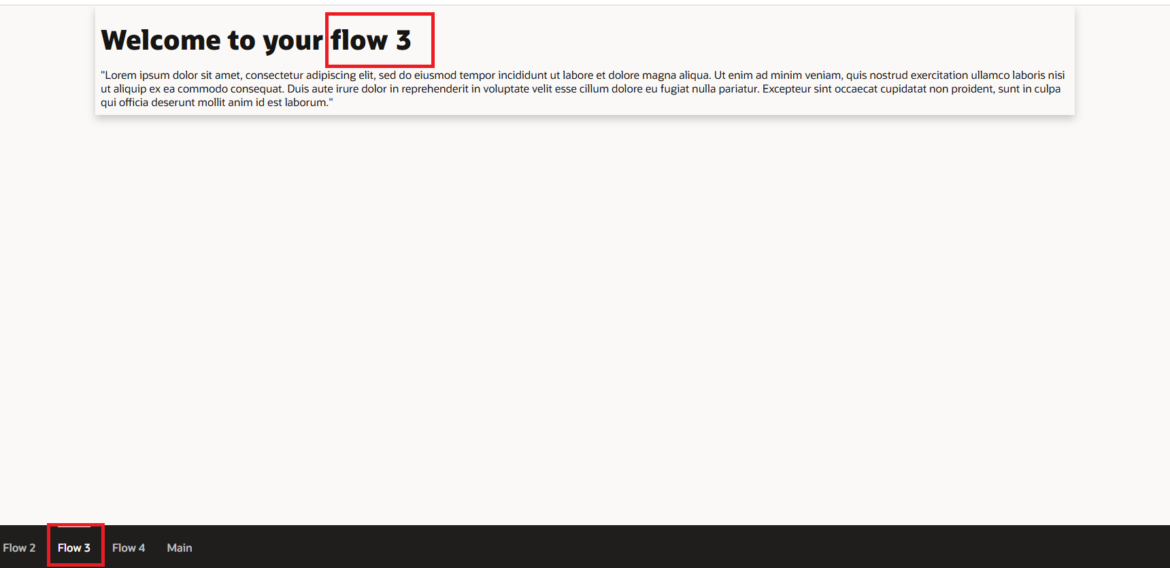
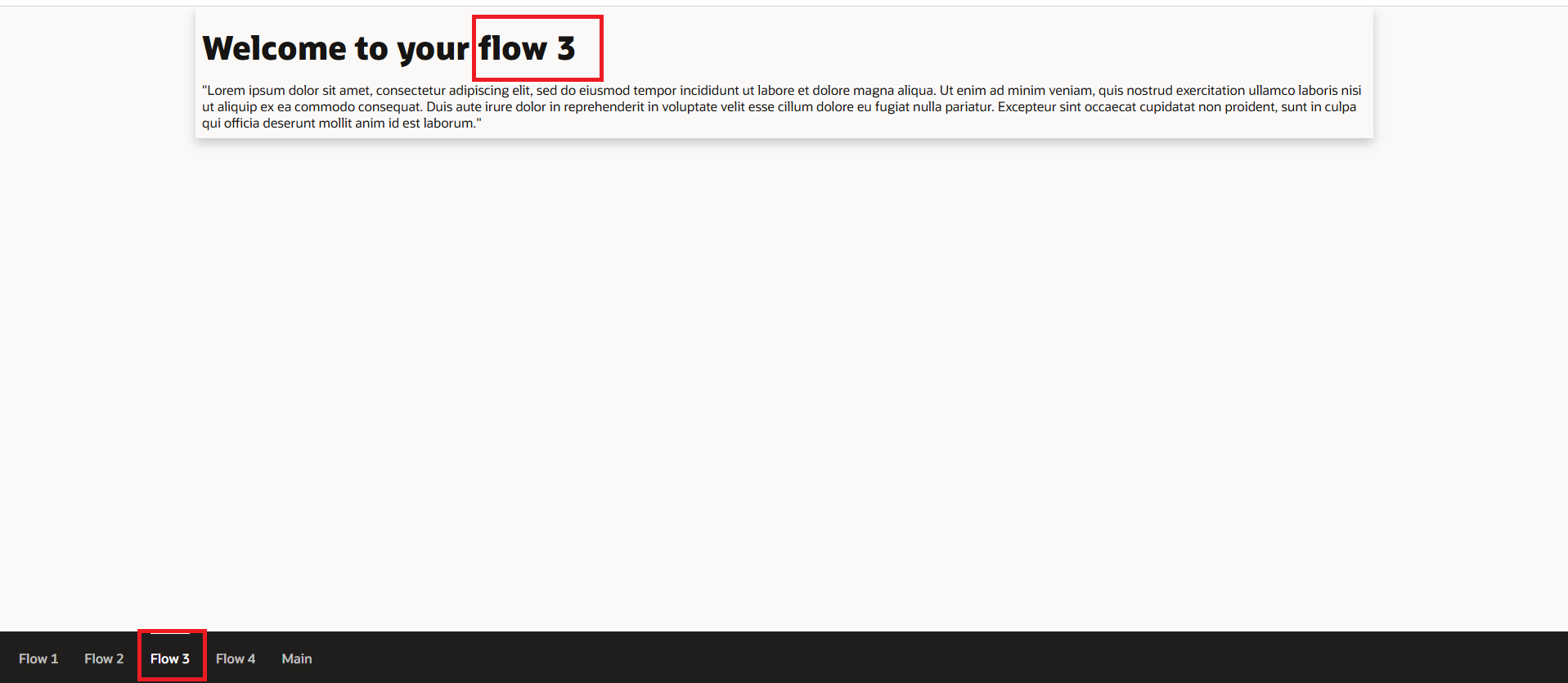
 9. Now preview the app; you should see your flow in the bottom section of your default page, and when you click on navigation items, you should be navigating to respective flows as shown in the following screenshot:
 This is how we can implement In-App Navigation using Redwood in Oracle Visual Builder.
If you liked the article, please like, comment, and share.
Please look at my YouTube channel for Oracle Integration-related videos and don’t forget to subscribe to our channel to get regular updates.
Further Readings
Creating a search page using Oracle Visual Builder Redwood
Using Redwood General Overview Page Template in Oracle VBCS
Configuring Simple Create and Edit Page Template | Oracle Redwood
Configure General Drawer Template in Oracle Redwood
How to Customize the Lock Screen in Oracle Visual Builder
Merging two CSV files into a single file in Oracle Integration